
How to Connect Your Gloves
The MiMU Gloves communicate back and forth over networks with a computer running Glover. They can connect in three ways:
Video: How to Connect Your Gloves
1. Connecting via USB
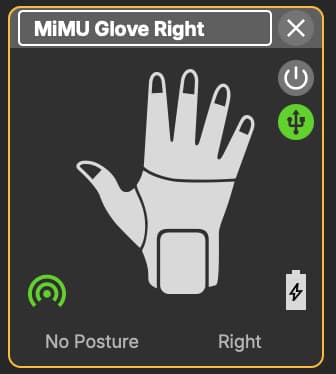
When the gloves are plugged into ports on your laptop, they can be charging while you use them. The provided USB cables connect directly between gloves and computer.
Tip: If you need more USB ports on your computer, because you only have one or only USB-C ports then use an adapter such as this one from Anker or similar. This can also be used to connect an Ether cable for the Router set up explained later on this page.
2. Wireless Wi-Fi Connection
The MiMU Gloves can communicate wirelessly using Wi-Fi in one of two ways:
2.1 Glove Network
The gloves make their own Wi-Fi network with one glove serving as the Wi-Fi hotspot. If you own a pair then the default is the left glove serving as the Wi-Fi and the right one connecting to it. First you need to connect your Gloves via USB. Then you click on 'Devices' in the top menu in Glover.
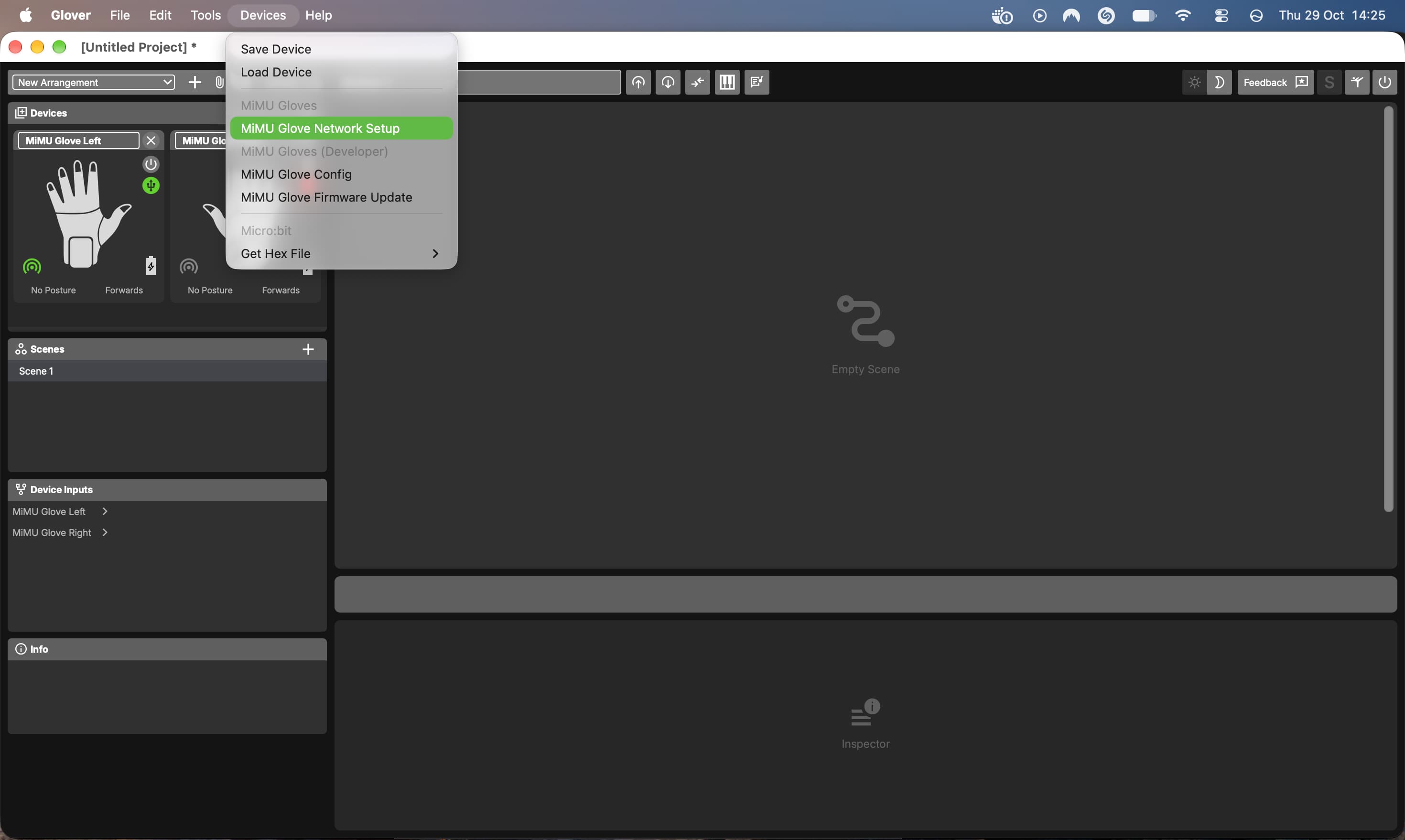
Select 'MiMU Glove Network Setup'.
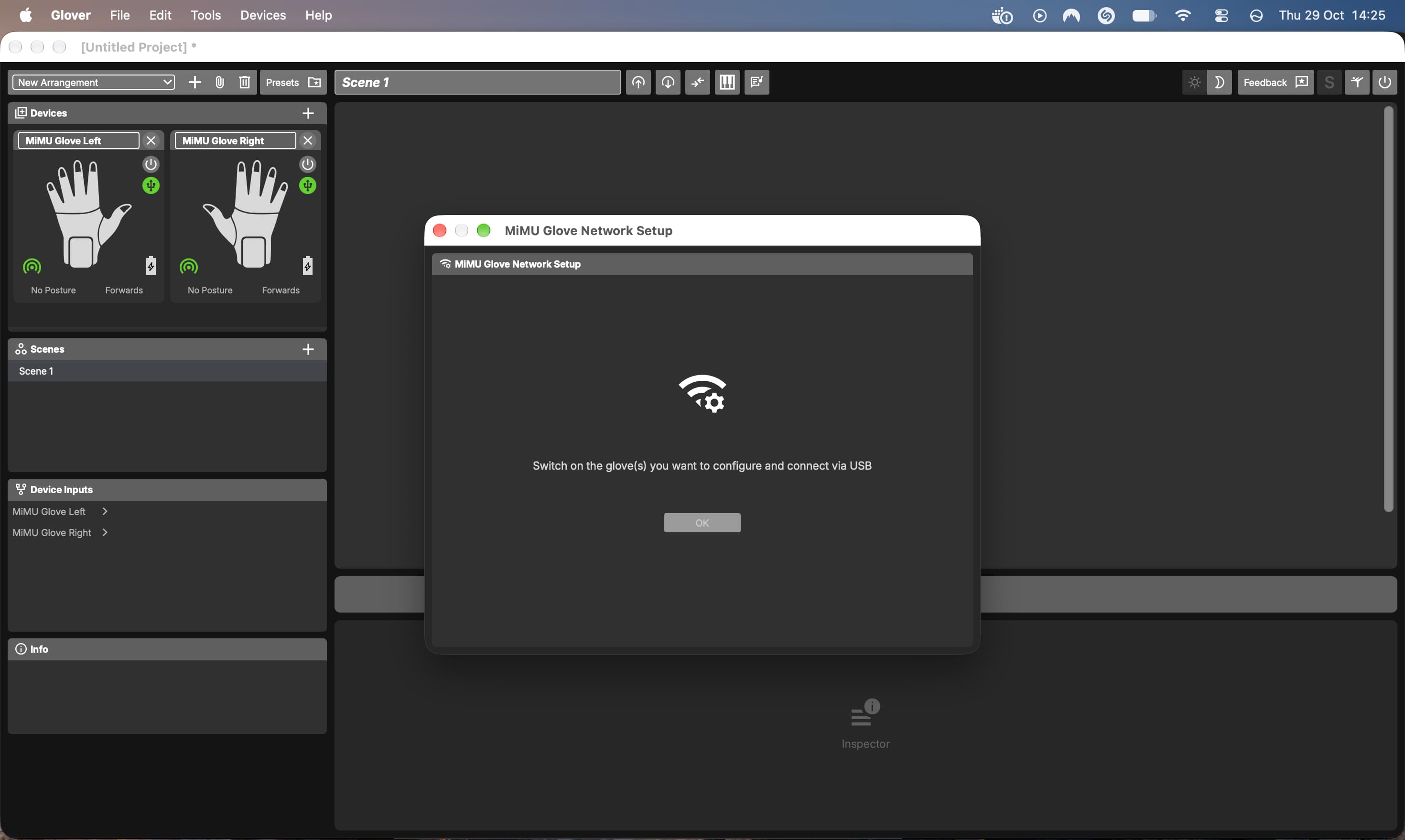
Make sure both of your gloves are connected and show up on the pop up window and click continue.
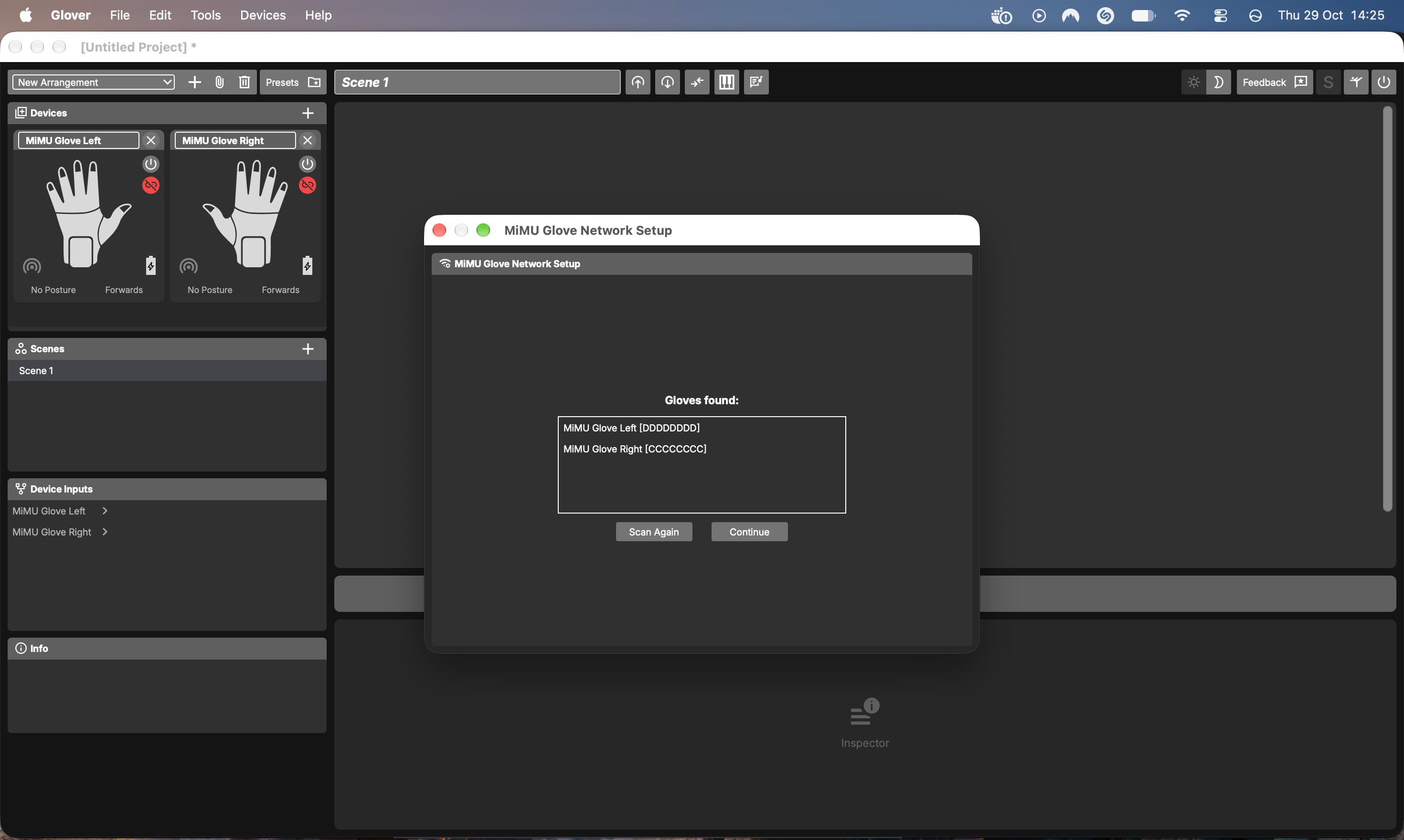
Then select the Glove Network.
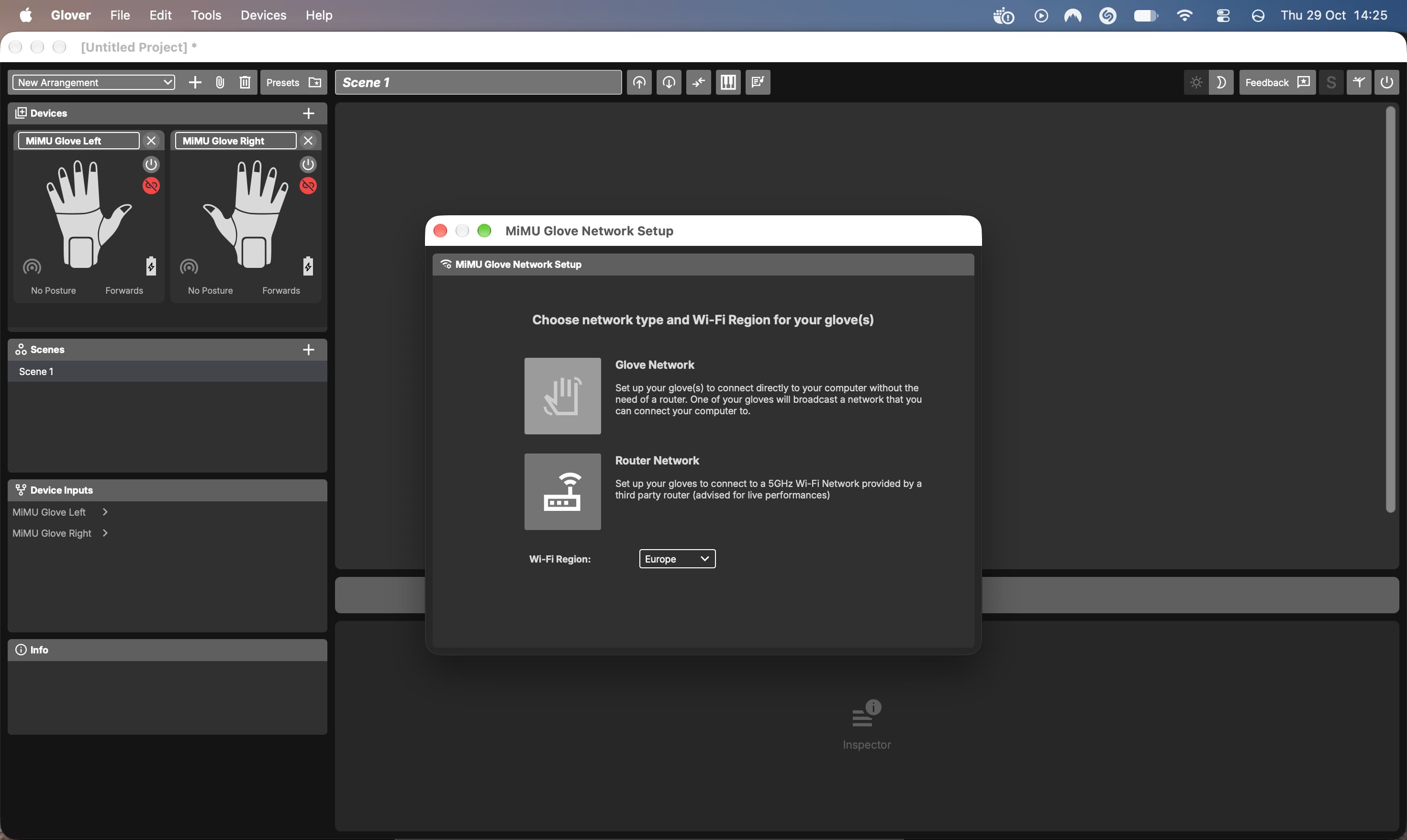
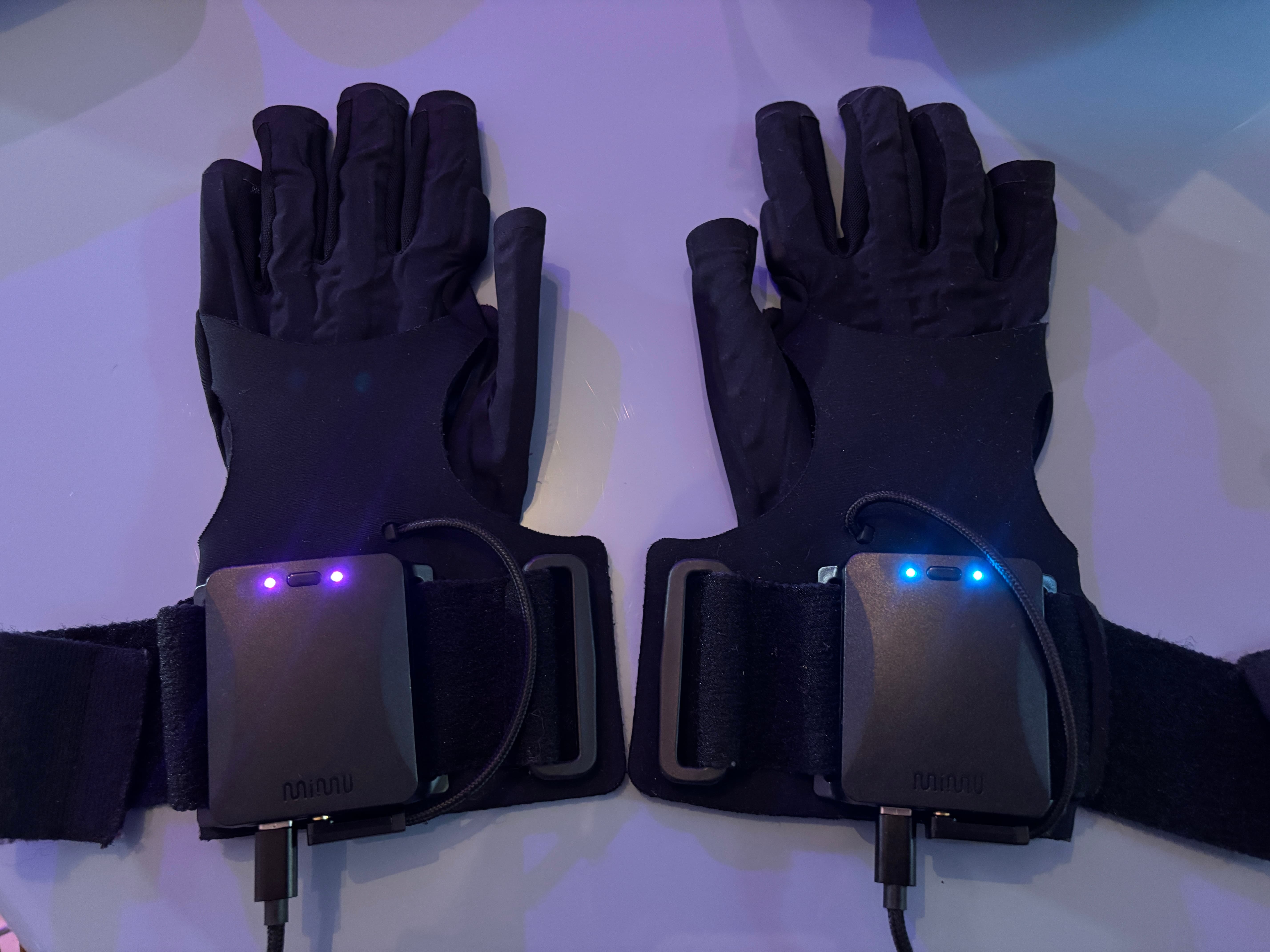
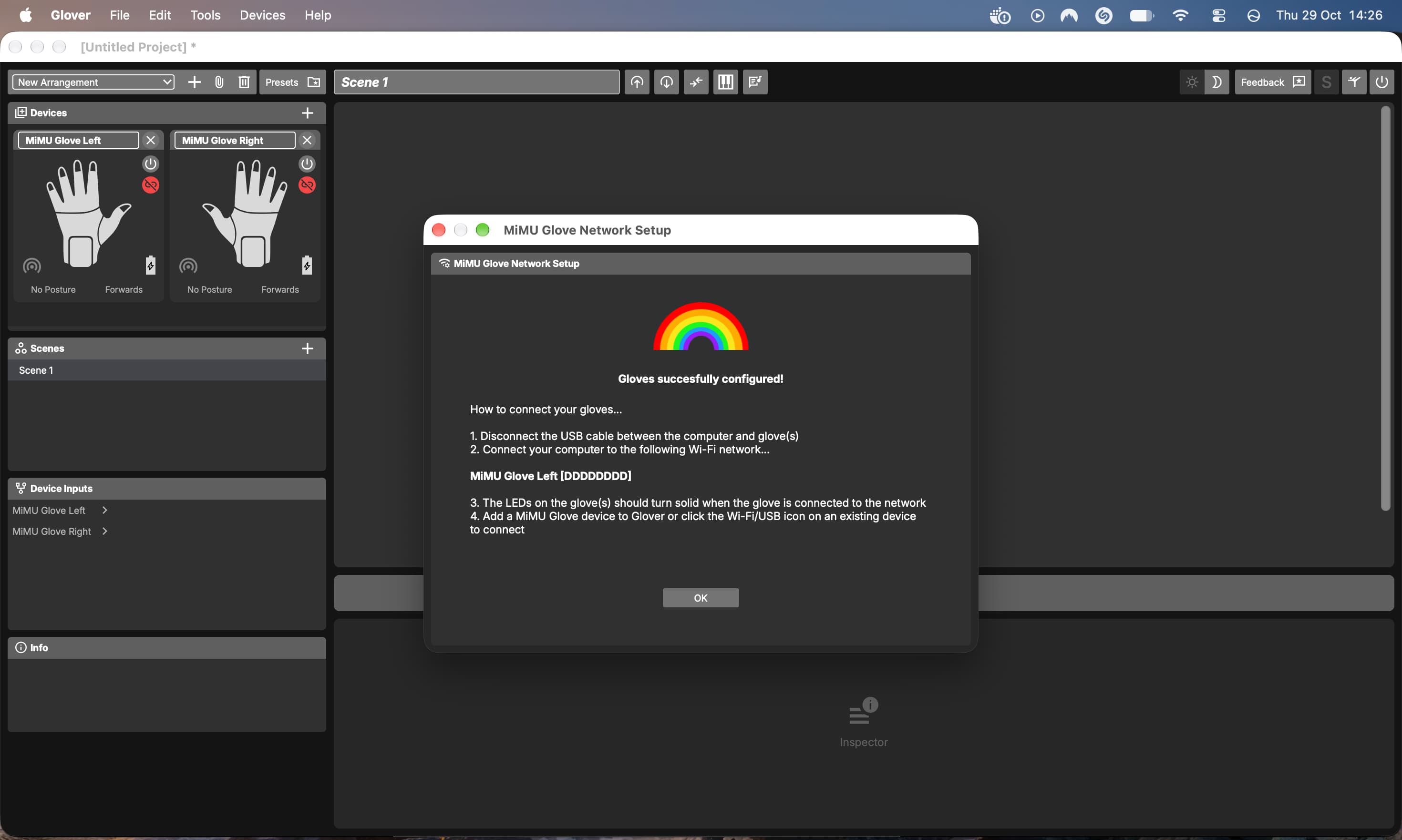
Your gloves will be blinking. You will know if the LED lights on the left glove turn to a solid magenta colour that they have established the Wi-Fi. The right glove will then turn to a solid teal colour if they have successfully connected to the right gloves' Wi-Fi.
You should also be able to find and select the Glove's Wi-Fi in the dropdown of your available Wi-Fi connections.
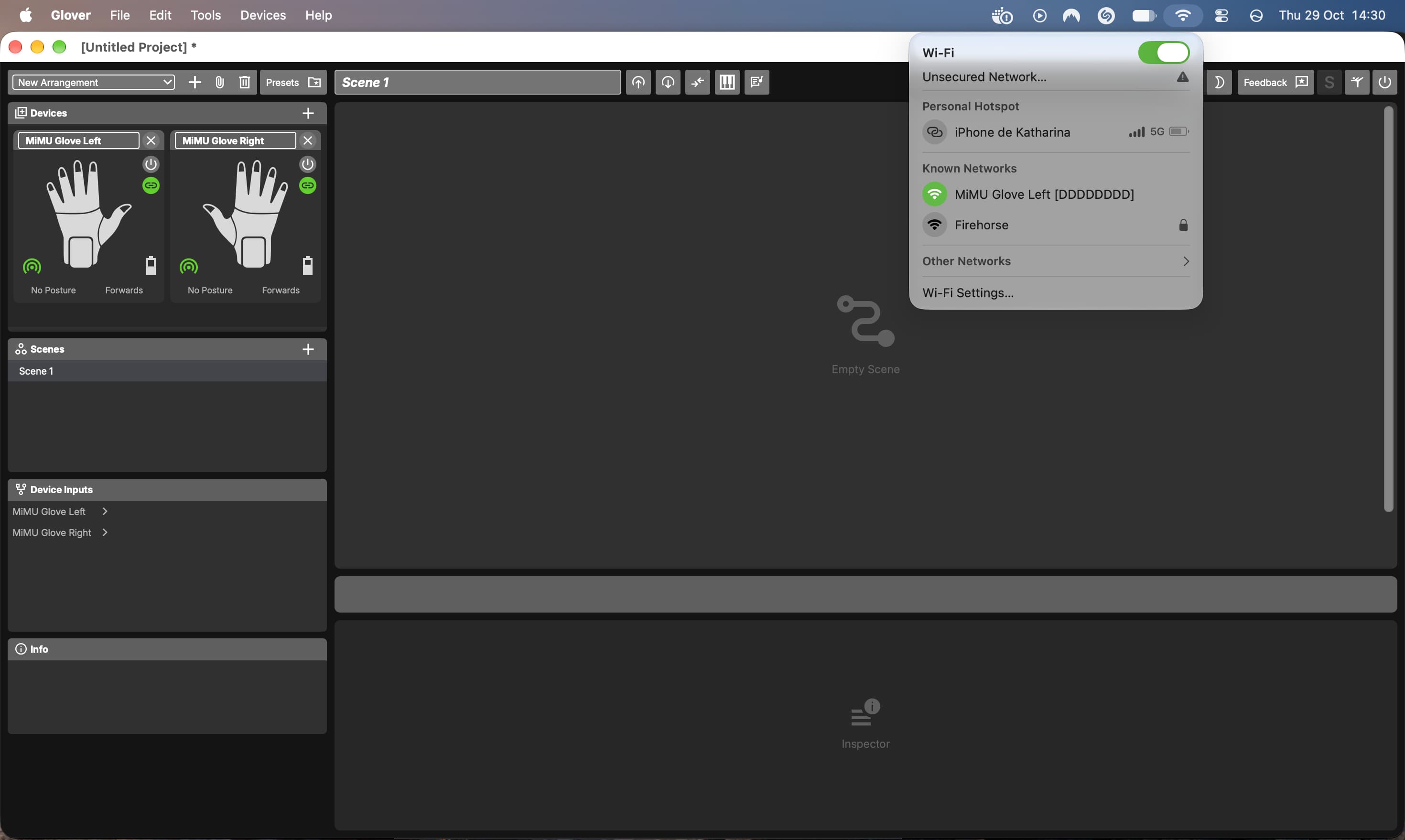
You can now unplug your Gloves from the USB cables and click on the red connection button on your devices in Glover until they connect. Sometimes this can take a minute until they establish the connection, sometimes they connect immediately.
Tip: You might notice that the glove which is connected to your computer's Wi-Fi and which is serving as the gloves' Wi-Fi hotspot shows its battery depleting faster than the other one. This is normal. If you would like to extend that glove's battery life, try configuring the gloves to an external router network as documented in the next step.
2.2 Router Network
If the gloves are configured to use a router network, they will connect to an external router that then connects to the computer. Some of the benefits of a dedicated router include:
- Improved glove battery life since neither glove is having to serve as a Wi-Fi hotspot
- More control over network traffic in busy Wi-Fi environments
- Ability to access internet with the same router as the gloves to simplify things like live-streaming or screensharing
- Widely available compact, lightweight, inexpensive travel routers that can make for a very convenient and self-contained portable system.
There might be some downsides to custom configurations of glove networking, such as
- Increased system complexity and potential for things to go wrong
- A bit more networking knowledge is sometimes needed for troubleshooting
- High degree of variability in router performance and capabilities depending on region, hardware, and local environment.
Usually, the benefits will outweigh the risks, so this section of the documentation provides a basic guide for getting up and running with an external router.
First you need to connect your Gloves via USB. Then you click on 'Devices' in the top menu in Glover.
Select 'MiMU Glove Network Setup'.
Make sure both of your gloves are connected and show up on the pop up window and click continue.
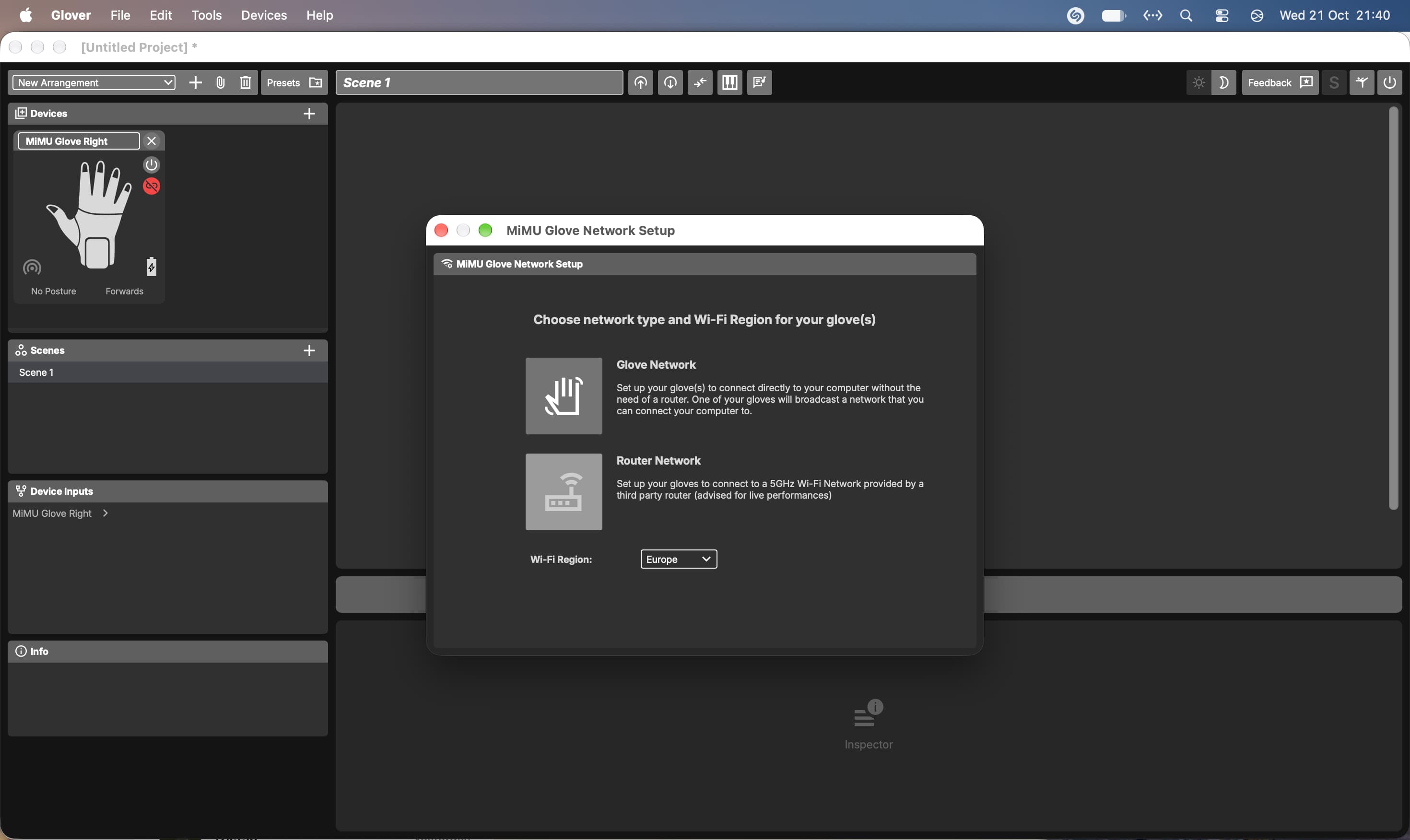
Then select the Router Network.
Type in the name and password for your router. If you haven't set up your router yet, in our Router Setup documentation is a guide to do that.
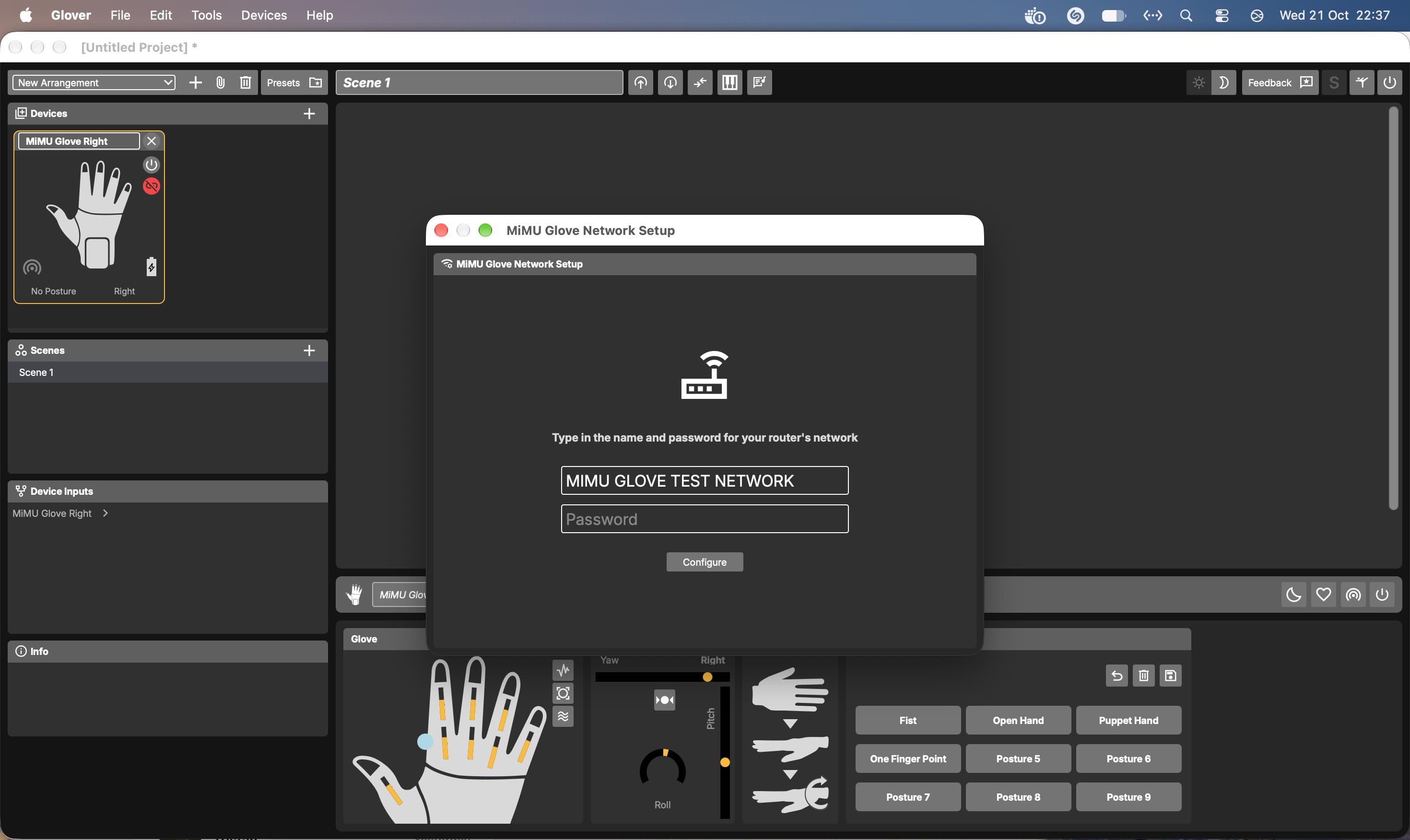
Your gloves will be blinking. You will know if the LED lights turn to a solid teal colour if they have successfully connected to the router.
If you have your laptop connected via Ethernet cable you can turn off the Wi-Fi on your laptop.
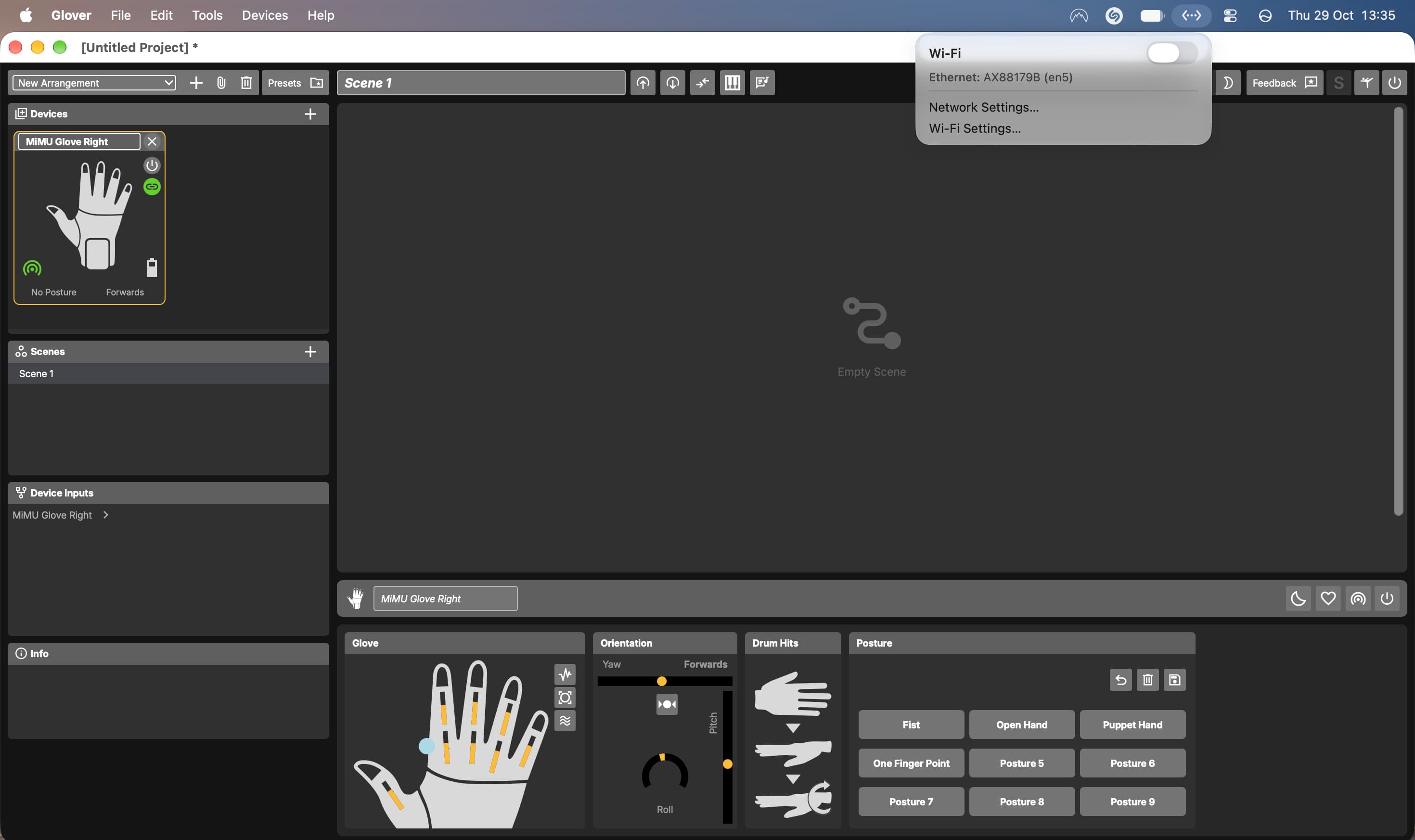
If not then you can connect to the router from the dropdown list in your Wi-Fi connections.
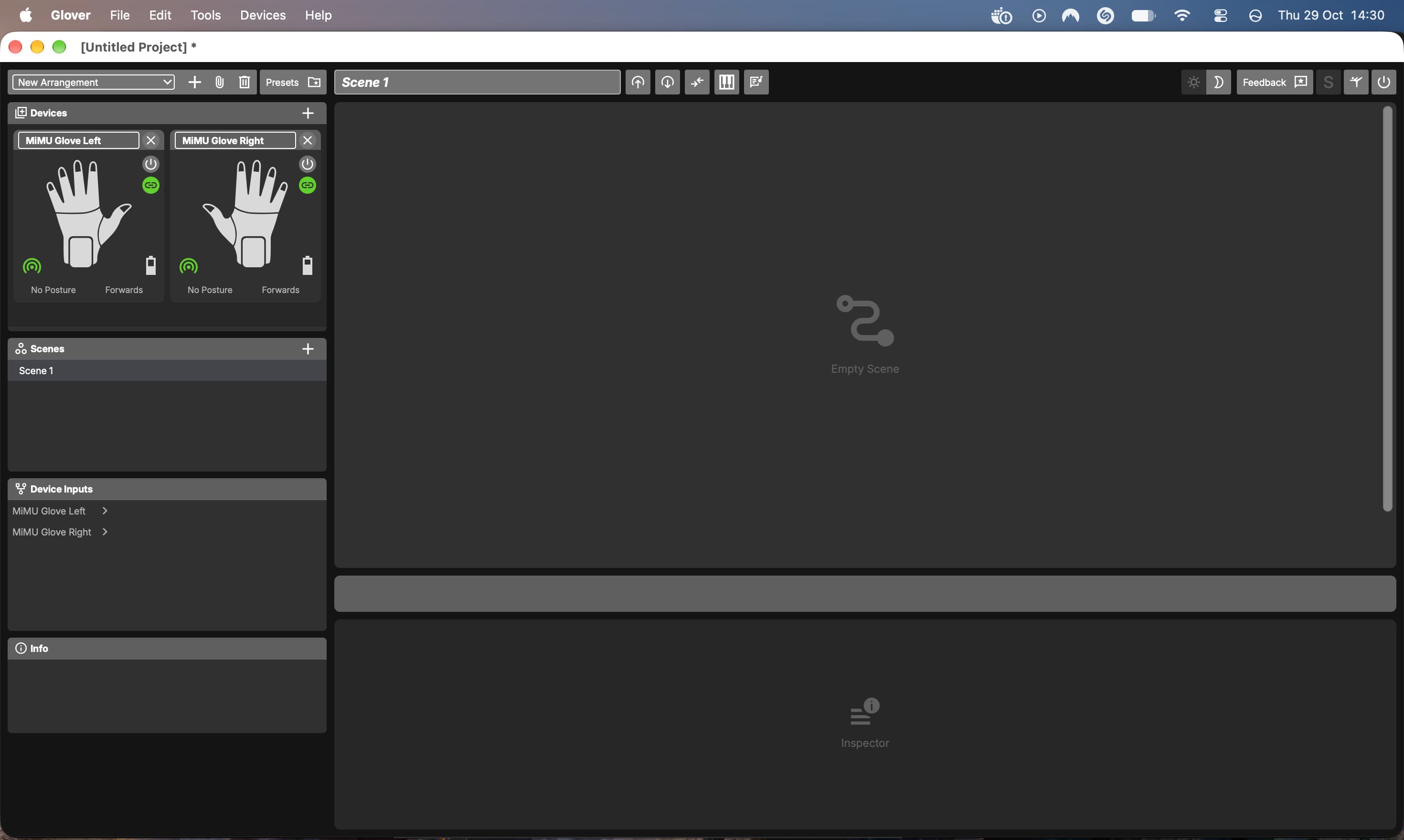
You can now unplug your Gloves from the USB cables and click on the red connection button on your devices in Glover until they connect. Sometimes this can take a minute until they establish the connection, sometimes they connect immediately.
As always, the MiMU team is available to help by emailing [email protected].